I taught EMA to Slack me
There's a certain sense of satisfaction in giving your agent a bunch of work to do before stepping away from the desk, and returning later to find it all done and ready for your review. Unfortunately, it doesn't always work this way. There is an equal (if not greater) sense of dread when you return to find the agent waiting patiently on your response to a question, perhaps one that was posed mere minutes after you left... Your super-intelligent assistant was left hanging, and nothing got done!
Feeling the frustration of running into this one too many times, I posed a question to the Adobe Experience Modernization Agent (or EMA for short): "Instead of waiting, can you just Slack me if you need my input?" The conversation that followed is what led to this post, and a brief skill that can help you get your EMA environment set up in a similar way.
Step 1: Give the agent its own Slack app
It's tempting to reuse a bot you already have. For my first test I did exactly that: I pointed EMA at a personal bot that posts my morning briefing, and when I checked, it had accumulated over a dozen scopes. It worked, but in the spirit of reducing the blast radius, it gave the agent far more access than it needed. Create a dedicated app instead so you know exactly what the agent can do and can revoke it without breaking anything else.
-
Go to api.slack.com/apps, click Create New App, choose From scratch > Pick features, give it a name (something like "EMA Helper") and pick your workspace.
-
In the "What it can do in Slack?" dialog, add the following bot scopes:
chat:write, to post messagesgroups:history, to read replies in a private channel (usechannels:historyinstead if your channel is public)
-
Click Create. Depending on your workspace/grid setup, this may require approval from an admin first.
-
You should land on the OAuth & Permissions page. If your Slack grid is like mine, you'll need to click the green Request to Workspace Install button in order to generate OAuth tokens.
-
Copy the Bot User OAuth Token. It starts with
xoxb-. Treat it like a password: we'll paste it into EMA's settings below.
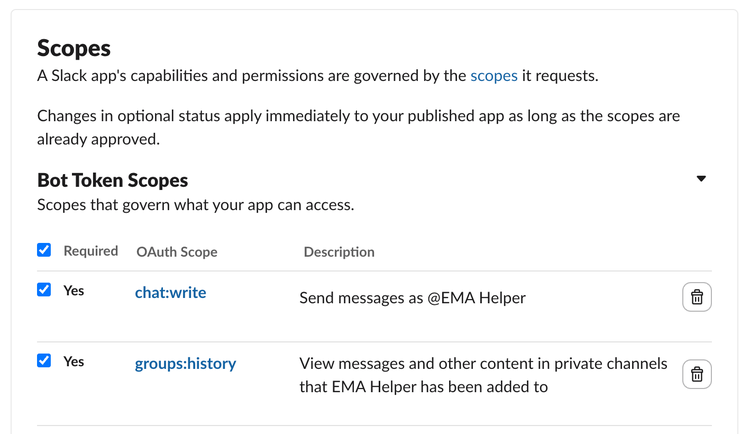
With these permissions the agent can post into channels it has been invited to, and read the threads in those channels. It can't read your DMs, list your channels, or post anywhere it hasn't been invited.
Next, create a private channel for the agent to talk to you in, then invite the app into it:
/invite @EMA Helper
You'll need the channel's ID. The easiest place to find it is the channel's URL, e.g. https://yourcompany.slack.com/archives/C0123456789, where it's the part starting with C. You can also find it at the bottom of the channel's About tab.
Step 2: Let EMA hold the token, not the chat
The best way to keep secrets out of agent chat transcripts is to never give the agent an environment where it could (even accidentally) read them. EMA provides exactly such an environment, via the Protected site authentication panel in the EMA Settings page.
-
Go to the EMA Settings page, accessible via the gear icon or directly at https://aemcoder.adobe.io/settings
-
Scroll down to the Protected site authentication panel.
-
Click the + Add site button, and fill out the form:
- For Site hostname enter
slack.com - For Authentication type select
Bearer token - For the Bearer token value enter the Bot User OAuth Token from above, e.g.
xoxb-...
- For Site hostname enter
-
Click Save to persist your bot token for slack.com.
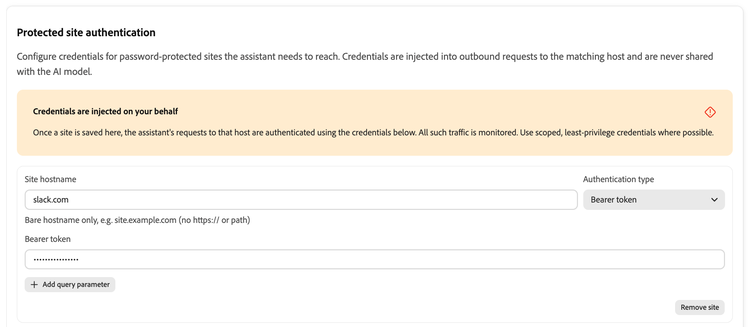
Despite its name, Protected site authentication isn't limited to logging in to websites. For any request the agent makes to the hostname you entered, EMA adds the credential on the way out. Here that's an Authorization: Bearer xoxb-… header on calls to slack.com/api. The token is never shared with the model, so it can't end up in a transcript, a commit, or a Slack message.
The rule from my last post still applies: never paste a token into the chat. If you do, consider it compromised and rotate it.
Step 3: Teach EMA a new skill
I think this feature of EMA is super powerful, and not very well known: you are not limited to the skills which we have built into it. If you find a skill online and want to use it in your project, you just have to ask.
Before installing any skill: read it! It's just instructions and code that your agent will follow. This one is small: a SKILL.md that tells EMA when to message you and how to write the message, and a short slack.sh script that posts to the channel and polls for replies. Notice that it never asks for a token. It relies on the credential you set up in Step 2.
To set your EMA project up with the "Slack me" skill that I created, send it this prompt:
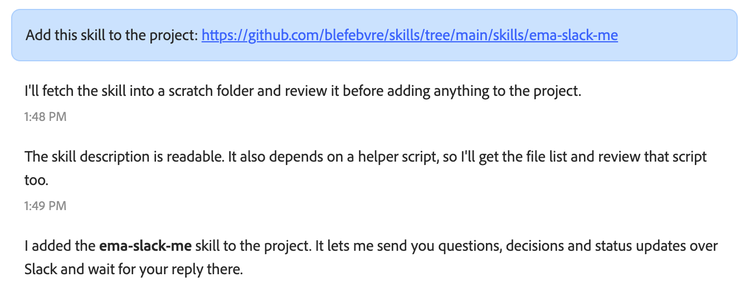
Add this skill to the project: https://github.com/blefebvre/skills/tree/main/skills/ema-slack-me
Your response will vary, but it should be some form of the following:
Step 4: Try it from EMA
As a good end-to-end test to ensure everything is wired up correctly, send EMA a prompt similar to this one:
Use the channel https://yourcompany.slack.com/archives/C0123456789 to slack me. Send me a test message now, watch the thread for my reply, and echo it back here.
If everything is working, you should experience some form of the following:
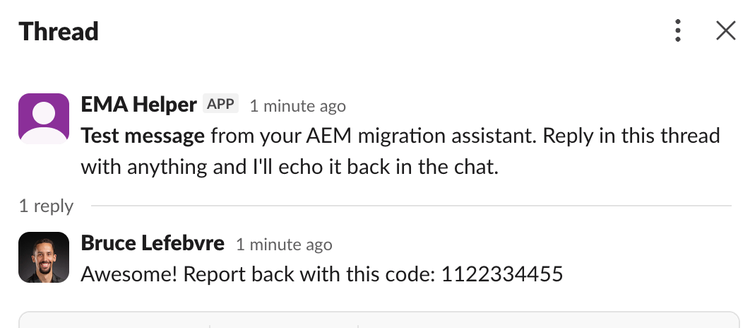
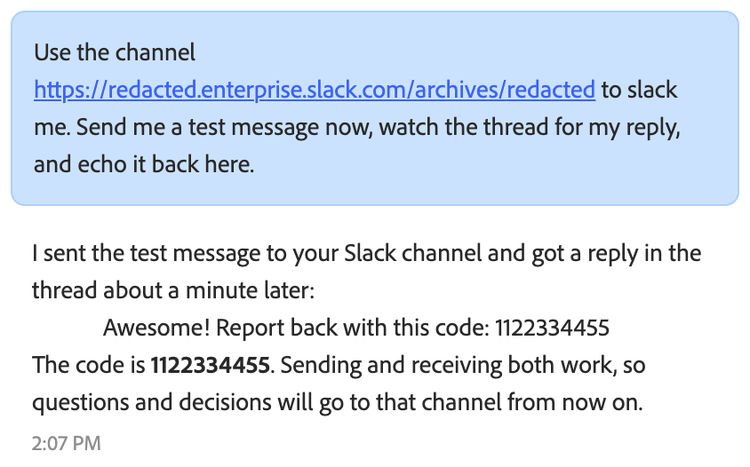
The skill saves this channel, so later prompts only need to say "slack me". Under the hood, polling is a single call to conversations.replies with the ts of the original message, repeated until something new shows up. Every 20 seconds (as defined in the skill) is well within Slack's rate limits for that method.
Step 5: Ask EMA to "slack me"
Here's an example prompt I've used when I needed to step away from my desk, but wanted to make sure I was kept in the loop on important decisions:
Migrate the site to AEM starting with the homepage. Once you've finished the homepage, migrate the site styles. Then, migrate the header and footer. Then, perform a critique of the homepage, iterating on each block as necessary to match the origin site 1:1. Next, crawl outward from the homepage migrating every link that is on the same domain. Ask any clarifying questions now as I will step away shortly for the evening. You can slack me with updates or questions as the migration progresses.
What if I don't answer right away? Not every message needs a reply. Progress updates and summaries are posted and the agent keeps working. When EMA needs a decision, it posts the question and checks the thread every 20 seconds. If you haven't answered after about 9 minutes, it notes in the chat that it's still waiting on Slack and keeps polling. Nothing gets lost, and work picks up as soon as you reply. If the Slack credential stops working (for example, the token was revoked), EMA falls back to asking in the chat.
---
Did it work for you? Are you now comfortably steering your AEM migration from the beach? 🏖️
In all seriousness, I've found this relatively straightforward setup very useful in my day-to-day work where I often have a migration (or two) running in the background. Best part is that it's simply leveraging the extension points that EMA already provides.